A WhatsApp extension that sends and receives WhatsApp messages
whatsapp-bot
Author: langgenius
Version: 0.0.1
Type: extension
Description
WhatsApp Cloud API extension that receives messages via webhook and optionally forwards them to a selected Dify App to generate replies, then sends responses back to WhatsApp users.
Setup
- Install dependencies:
- Run locally for remote debug in Dify:
Configure in Dify
Open plugin settings and fill:
- (): from Meta for Developers.
- (): choose a secret and reuse in Meta webhook setup.
- (): WhatsApp Business phone number ID.
- (): WABA ID, required for fetching approved templates.
- (): optional. If set, incoming user text can be forwarded to the app; otherwise the plugin echoes the text.
Available Tools
This plugin provides the following WhatsApp tools:
1. Send Message ()
Send a plain text message to a WhatsApp user.
Parameters:
- : WhatsApp user ID or phone number (international format without +)
- : Message content to send
2. Send Template ()
Send an approved WhatsApp template message to a user. This tool dynamically fetches your approved templates from WhatsApp Business.
Parameters:
- : WhatsApp user ID or phone number (international format without +)
- : Enter the template you would like to send as a string. The template has to be approved by Meta.
- : Template language code (e.g., en_US, zh_CN, pt_BR). Default: en_US
- : Optional parameters for template variables (comma-separated or JSON array)
Example template parameters:
- Simple: (for templates with {{1}}, {{2}})
- JSON:
Webhook Endpoints
- for webhook verification: responds with when matches settings.
- to receive events. Currently extracts text messages and replies with text.
Configure WhatsApp Business (Cloud API)
-
Apply for a Meta Developer account
- Visit and create/upgrade to a Developer account.
-
Create a WhatsApp app in Meta for Developers
- In your Meta Developer dashboard, create an App, then add the WhatsApp product to the app.
- Follow the quickstart to get a test phone number and set the product up. See Meta guide: .
-
Generate API token and copy Phone Number ID
-
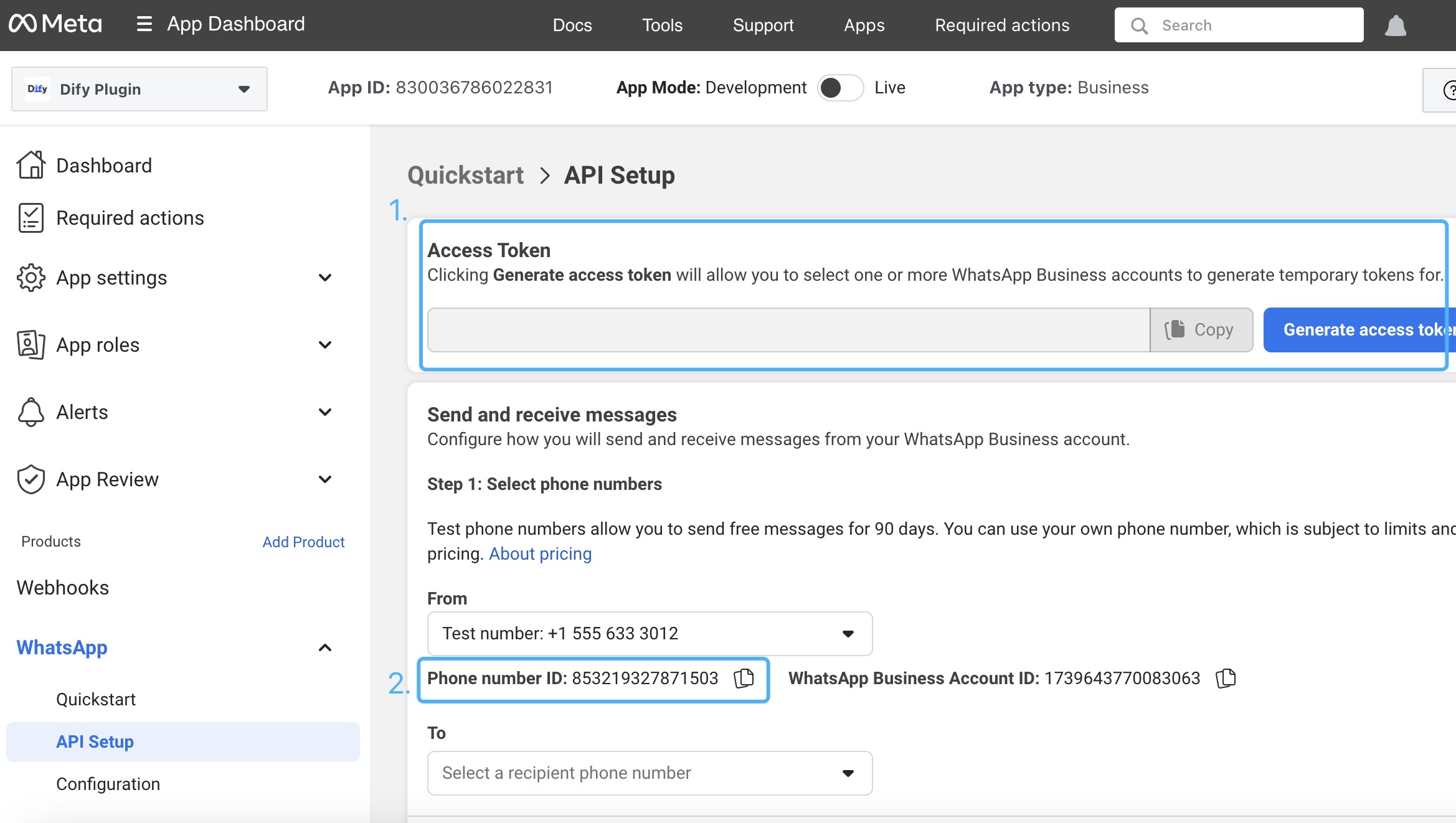
In WhatsApp > API Setup, generate an access token (temporary test token or system user token) and copy your Phone Number ID.
-
You will need these values in Dify plugin settings: and .
-
Reference:
-
3.5. Find your WhatsApp Business Account ID (WABA ID)
- In Meta Business Suite, navigate to WhatsApp Accounts or check the URL when viewing your WhatsApp Business settings.
- The WABA ID is a numeric ID (e.g., ) that identifies your WhatsApp Business Account.
- You can also find it in the API Setup page or by calling:
- For developers with a testing account, the WABA ID is next to Phone number ID under WhatsApp -> API Setup -> Send and receive message.
- This ID is required for the tool to fetch your approved message templates.
-
Configure the webhook in Meta to point to this plugin
-
In WhatsApp > Configuration, set:
- Callback URL: your public Dify endpoint for this plugin, for example:
- Verify token: the exact you set in the plugin settings.
-
Subscribe to the field for the Webhook.
-
References:


-
-
Token hygiene for testing accounts
- If you are using a test account, Meta’s temporary access tokens expire frequently. Regenerate tokens as needed and update the plugin settings accordingly.
- Keep your access token secret; do not commit it to source control.
Helpful docs:
- Webhook payload examples (to understand inbound sender fields like ):
- Echo bot setup (quick setup flow):
Chatflow Start Node
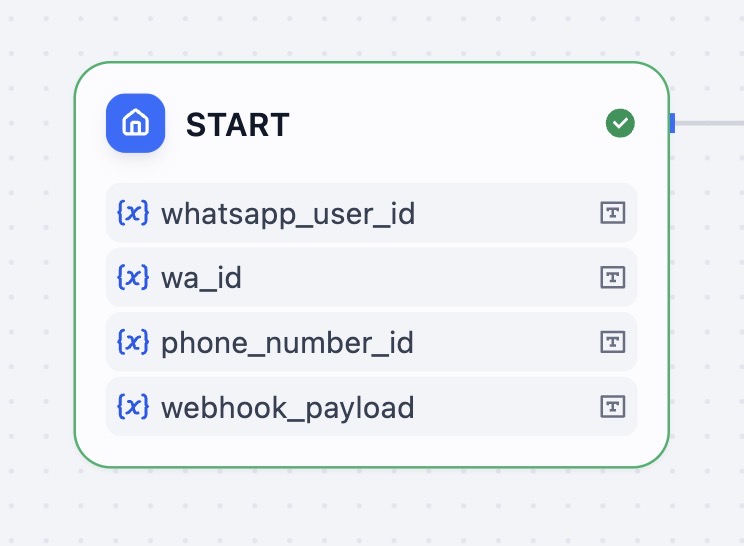
To have the Chatflow identify user from webhook, you will need to set up a few optional fields in your Chatflow's Start node.
After setting up API keys, add the following inputs in your Chatflow App's start node:
- whatsapp_user_id (not required)
- wa_id (not required)
You may use either for the To field in send_message tool. Include both to act as fallback for payload inconsistency.
Tests
Test 1: send a text message to a specified user
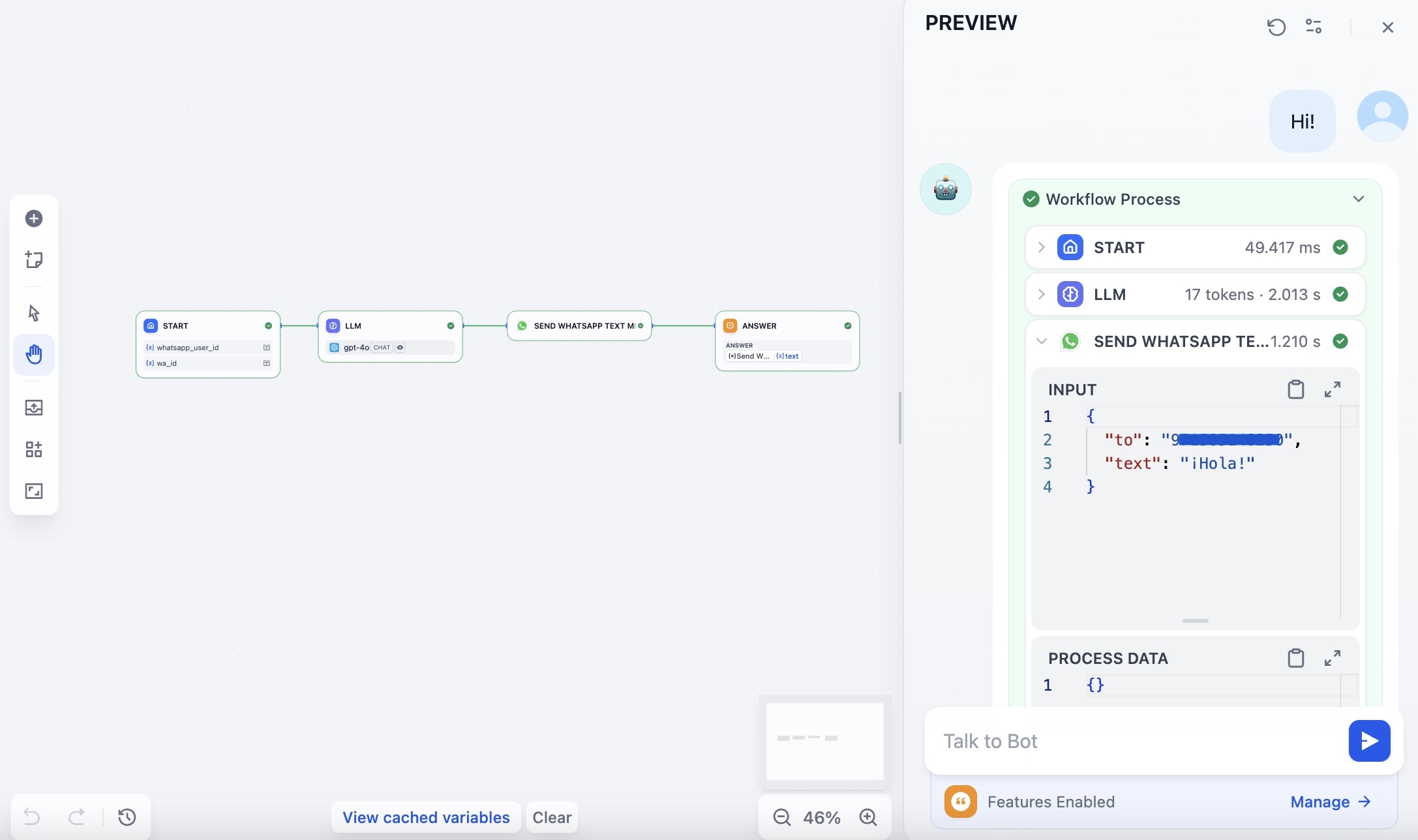
Test 2: reply to a user with a text message
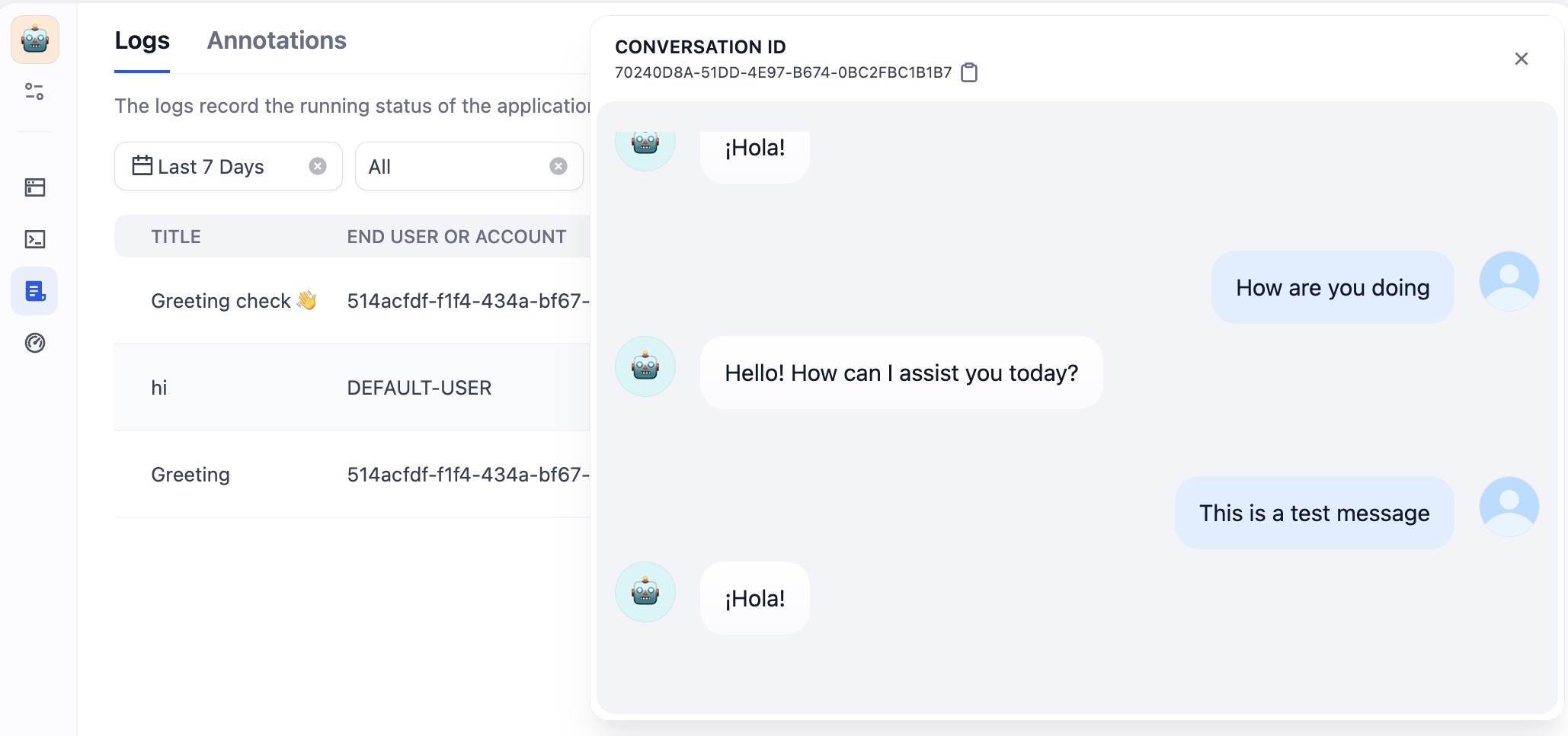
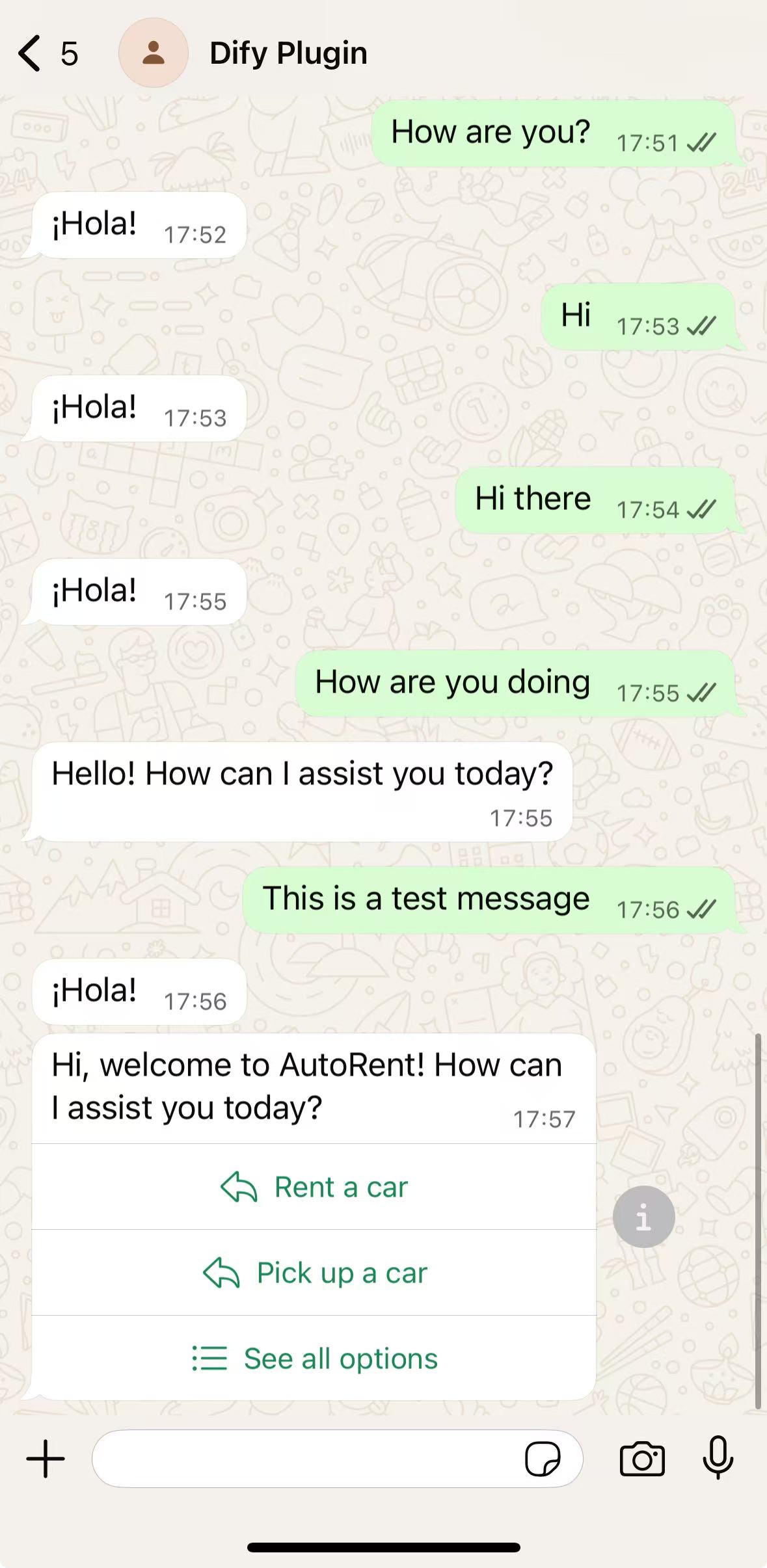
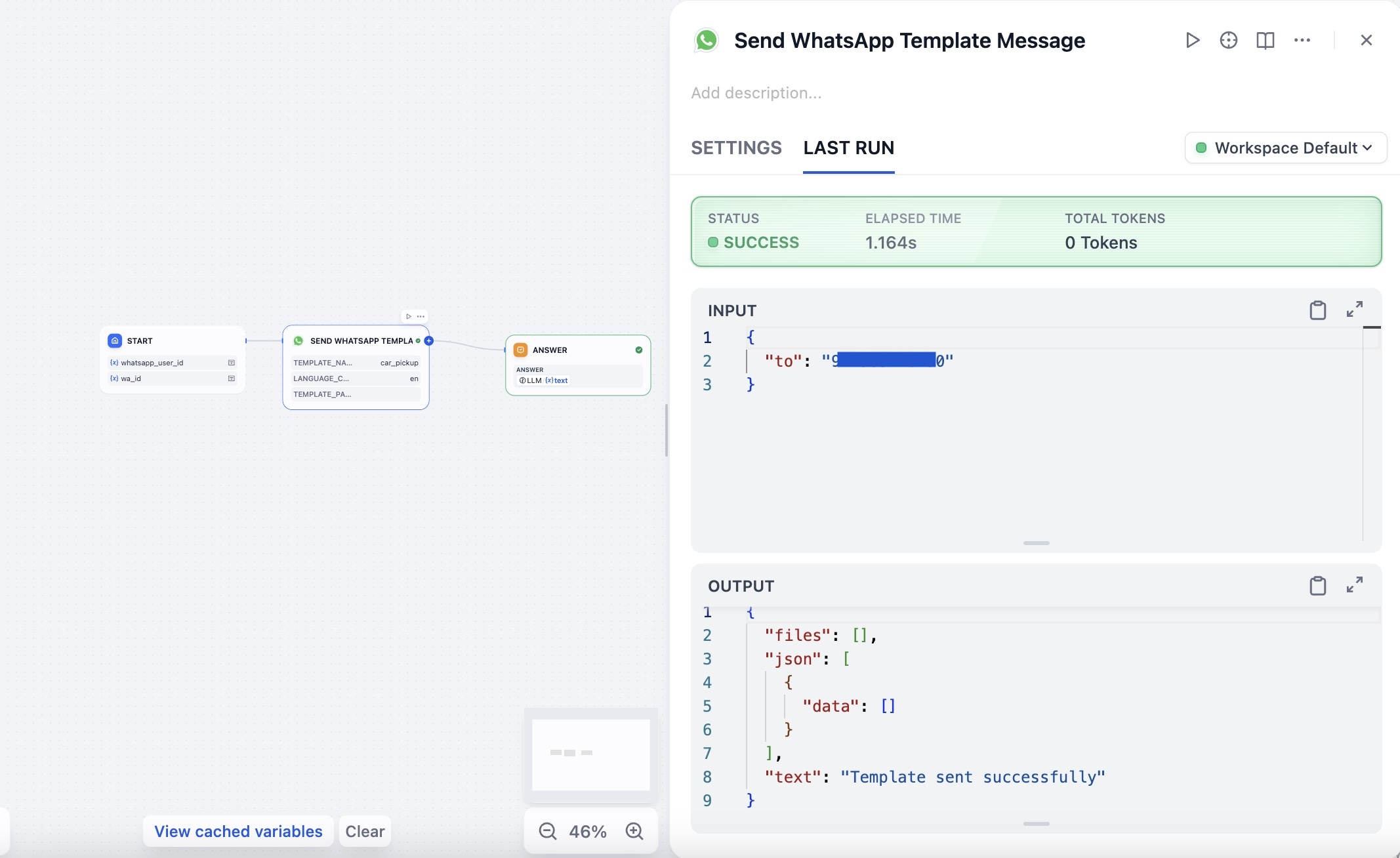
Test 3: send a template to a specific user
Note: since all templates need to be approved by Meta, the tool acts as a functional node most suitable for Workflow, rather than Chatflow.